
Make (formerly Integromat) is a powerful no-code automation platform that allows you to connect apps, APIs, and services together using visual workflows called scenarios.
Instead of writing code, you build automation logic by:
- Connecting modules
- Mapping fields
- Defining conditions and triggers
Make is widely used by growth teams, marketers, data teams, and developers to automate complex workflows without maintaining custom infrastructure.
Why Use Make with Adsroid?
Using Adsroid via Make allows you to interact with the Adsroid API without writing a single line of code.
Key benefits:
- 🚀 Fast setup – no backend required
- 🧠 Visual workflows – easy to understand and maintain
- 🔌 Native Adsroid module – no need for custom HTTP requests
- 🔁 Automation-first – perfect for recurring analyses, alerts, and reports
- 📊 Seamless integration with Google Sheets, Slack, Notion, Airtable, CRMs, etc.
This approach is ideal if you want to:
- Automate Google Ads analysis
- Trigger Adsroid recommendations on a schedule
- Send alerts or reports to Slack or email
- Combine Adsroid with your existing marketing stack
Adding the Adsroid Module in Make
Adsroid is available as a dedicated Make app.
Step-by-step:
- Open Make and go to Scenarios
- Click Create a new scenario
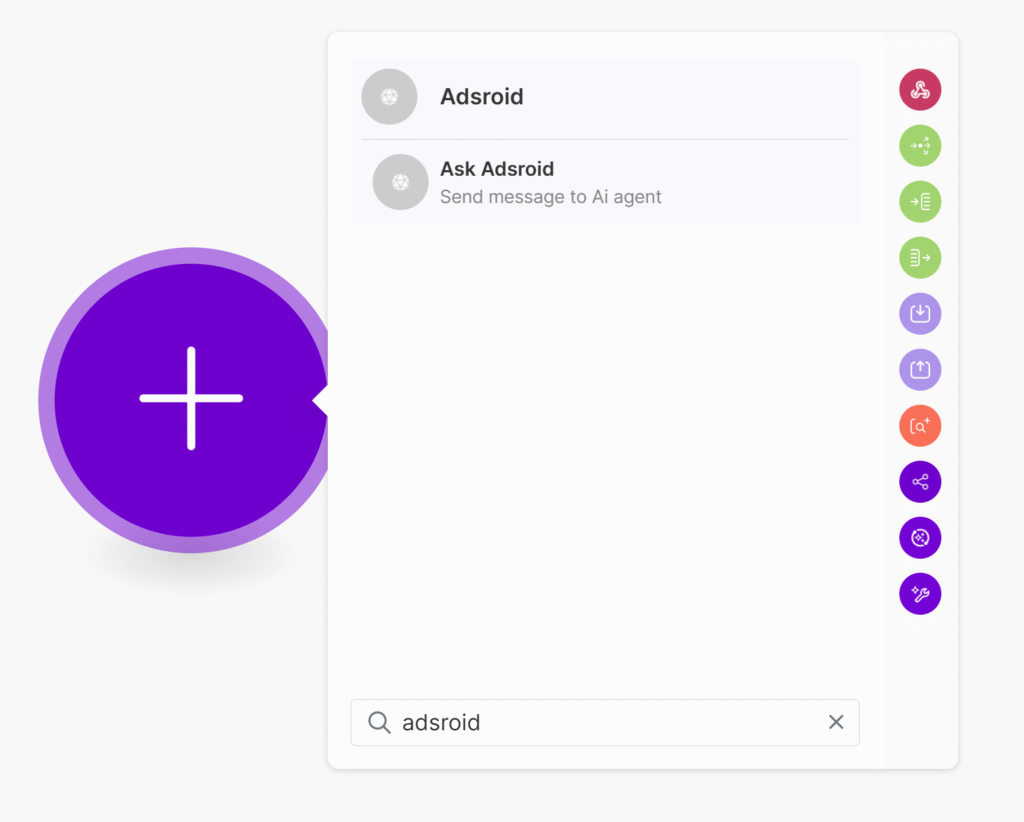
- Add a new module
- Search for Adsroid
- If it’s not visible yet, install it using this link:
👉 https://www.make.com/en/hq/app-invitation/ae5b35dfaa22a58eb2cb950f57e80c8a - Once installed, select Adsroid from the app list
Connecting Your Adsroid Account
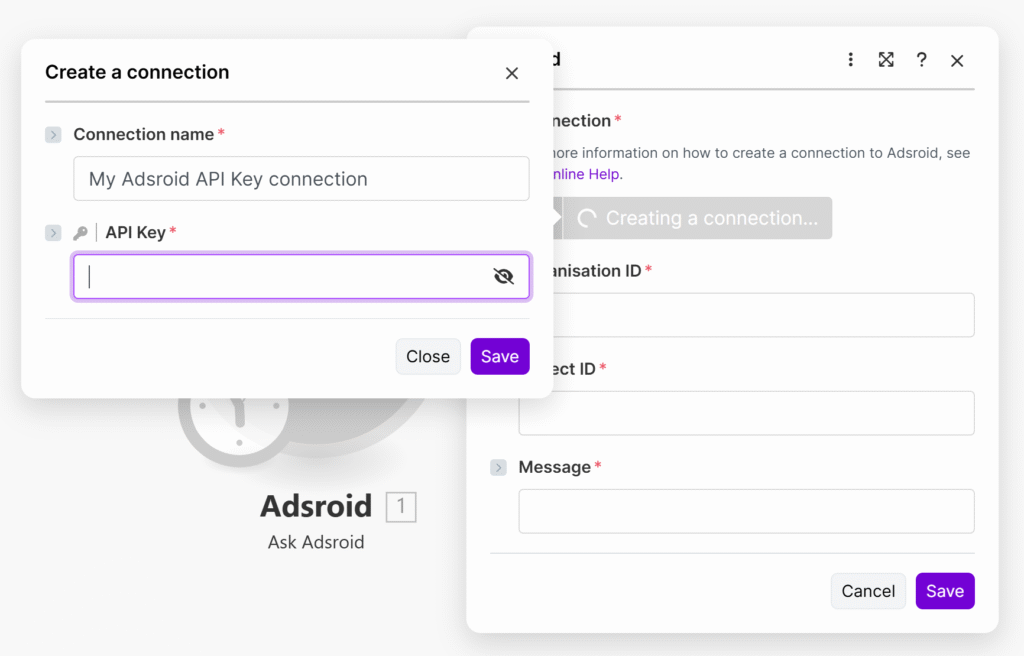
When using the Adsroid module for the first time, Make will ask you to create a connection.
You’ll need:
- Your Adsroid API key
Make will automatically handle:
- Authentication
- Headers
- Request formatting
Once connected, the connection can be reused across all your scenarios.
Using the Adsroid Module
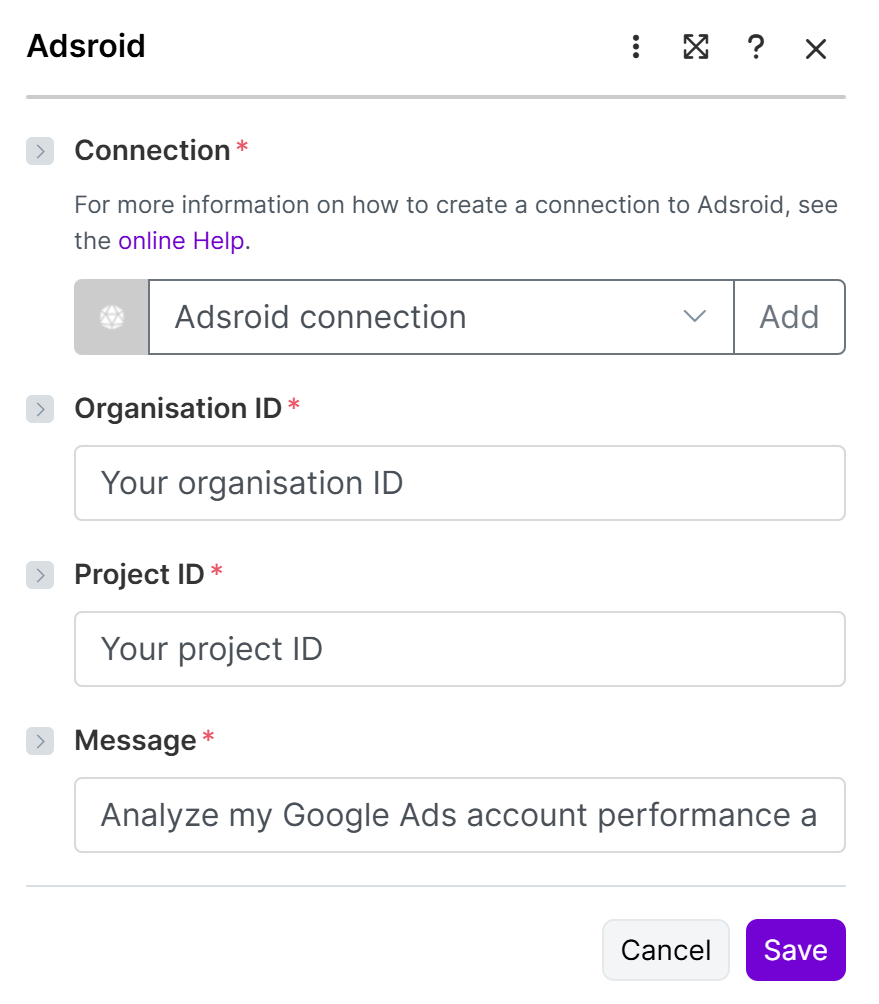
Typical usage pattern:
- Add your organization ID
- Add your Project ID
- Add your question/message
- Run the scenario or schedule it
You do not need to manually format JSON or handle HTTP responses — Make abstracts all of this for you.
Example Use Cases
Example 1: Daily Google Ads Analysis
Scenario flow:
- Scheduler (every morning)
- Adsroid – Analyze my google ads account
- Google Sheets – Append results
- Slack – Send summary message
This setup allows you to receive daily insights automatically without logging into Google Ads.
Example 2: Budget Alert Automation
Scenario flow:
- Scheduler
- Adsroid – Meta ads budget & performance analysis
- Filter (based on thresholds)
- Slack / Email notification
You get notified only when action is required.
Example 3: AI-Powered Recommendations Pipeline
Scenario flow:
- Trigger (manual or scheduled)
- Adsroid – Generate SEO/SEA recommendations
- Notion / Airtable – Store recommendations
- Slack – Notify team
Perfect for teams managing multiple accounts.
Understanding Module Outputs
Adsroid modules return structured data that can be directly reused in Make:
- Status
- Message
Each output field can be mapped to:
- Text messages
- Spreadsheet columns
- Database records
- Conditional logic
This makes Adsroid easy to combine with any other tool supported by Make.
Error Handling in Make
If an error occurs:
- Make will stop the scenario at the Adsroid module
- Error details will be visible in the execution log
Common causes:
- Invalid API key
- Missing required fields
- Account access issues
- Rate limits
For advanced workflows, you can:
- Use error handlers
- Retry requests
- Route errors to Slack or email
When to Use the API vs Make
| Use case | Recommended |
|---|---|
| No-code automation | ✅ Make |
| Fast prototyping | ✅ Make |
| Scheduled workflows | ✅ Make |
| Custom backend logic | API |
| High-volume requests | API |
| Full control over logic | API |
Both options are fully compatible and can be used together.
Getting Started
To start using Adsroid with Make:
- Install the Adsroid Make app
- Create your first scenario
- Connect your Adsroid account
- Automate your workflows