Ad Radar is accessible directly from your Adsroid project. No external integration or account connection is required — it is ready to use as soon as your account has the feature enabled.
Prerequisites:
- An active Adsroid account on the Scale plan
- A project already created in Adsroid
- An email address configured in the Notification Channels of your project — this is required to receive alerts when new ads are detected
To verify or add a notification email, go to your project Settings → Notification Channels and make sure at least one email address is active before creating your first radar.
Steps:
- Open your project in Adsroid and navigate to the Ad Radar section in the left menu.
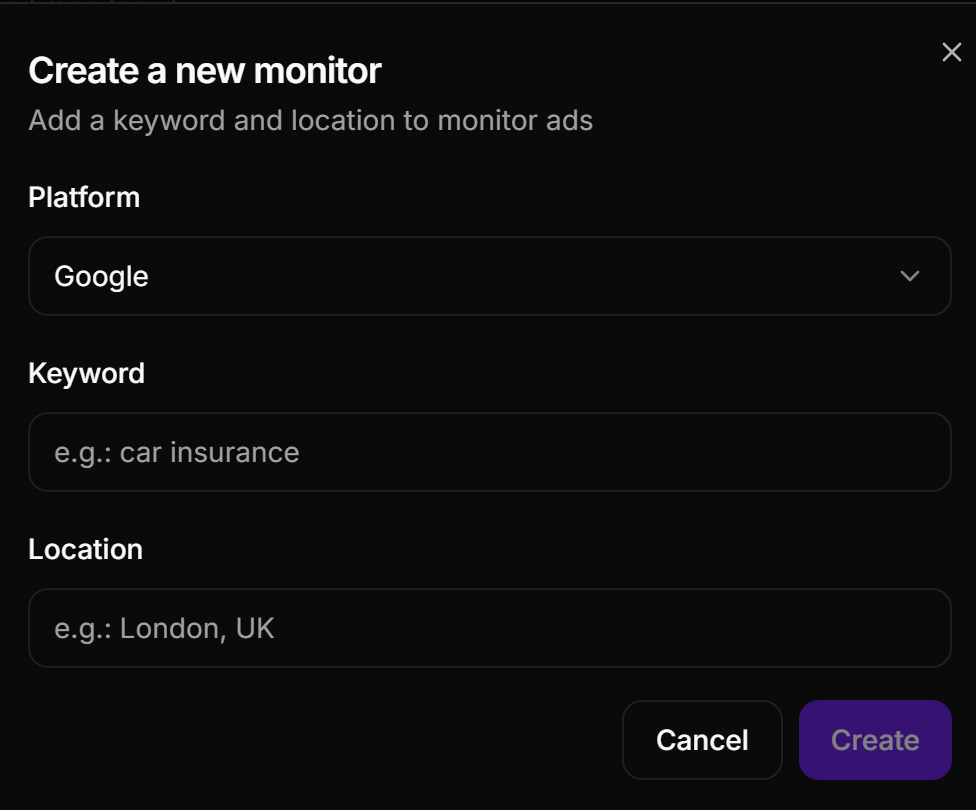
- Click New Radar to open the creation panel.
- Select the platform you want to monitor: Google, Bing, or Meta.
- Enter the keyword you want to track (e.g. “dental clinic Paris”, “running shoes”, “CRM software”).
- Set the location — country, region, or city — to define the geographic scope of the monitoring.
- Click Create. Your radar is now active and will start detecting competitor ads for that keyword and location.
Managing your radars
Once created, each radar appears in your Ad Radar dashboard. You can enable or disable any radar at any time using the toggle next to it — useful for pausing monitoring on a keyword without deleting the radar entirely.
Notifications
When new ads are detected by an active radar, Adsroid sends an alert to the email address configured in your project’s Notification Channels. Make sure this is set up correctly before activating your radars, otherwise you will not receive any alerts.