
This integration allows you to connect your HubSpot account to Adsroid using a HubSpot Service Key.
Once connected, Adsroid will be able to securely access the required data from your HubSpot CRM.
Before you get started
To create and manage Service Keys in HubSpot, you must have one of the following permissions:
- Super Admin
- Developer tools access
Step 1 — Create a HubSpot Service Key
- Log in to your HubSpot account
- Navigate to:
- Settings
- Integrations
- Private Apps / Service Keys (depending on your HubSpot version)
- Click Create Service Key
- Give your key a name
Example:Adsroid Integration
Step 2 — Add the required scopes
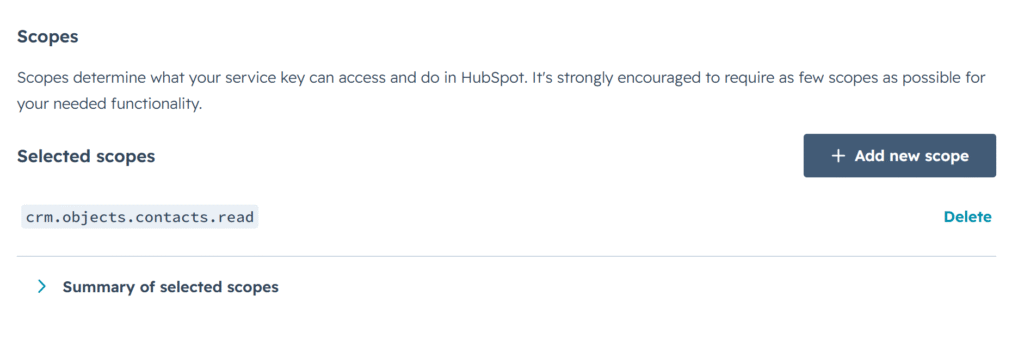
During the Service Key creation process, HubSpot will ask you to select permissions (“Scopes”).
Please make sure to enable all scopes required by Adsroid.
Step 3 — Copy your Service Key
Once the key has been generated:
- Copy the Service Key
- Store it securely
⚠️ HubSpot may only display the key once.
Step 4 — Add the key in Adsroid
- Log in to Adsroid
- Open:
- Settings
- Integrations
- HubSpot
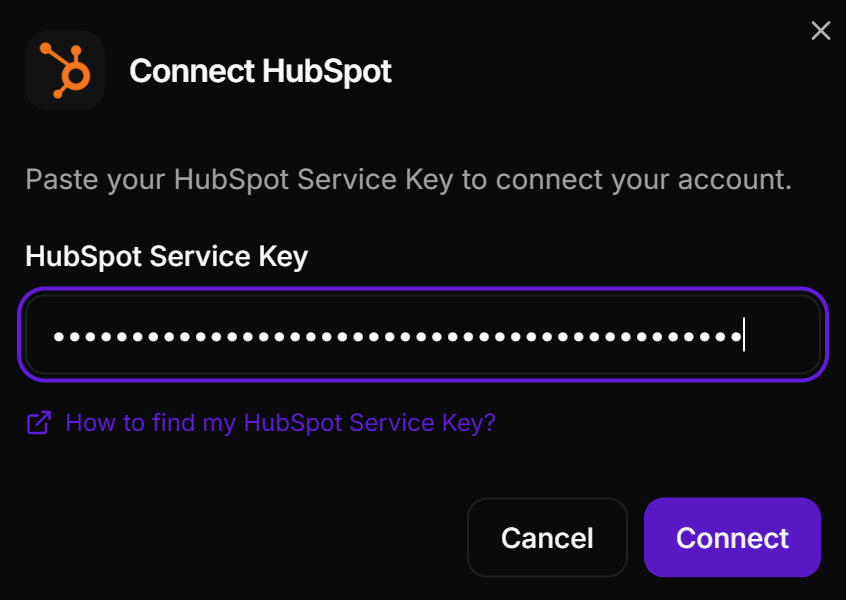
- Paste your Service Key into the integration field
- Click Connect
Verify the connection
After submitting your Service Key, Adsroid will automatically verify the connection with your HubSpot account.
If everything is configured correctly, your integration will become active immediately.
Troubleshooting
Insufficient permissions
If you receive a permissions error:
- make sure your HubSpot user is a Super Admin or has Developer Tools access
- verify that all required scopes were enabled
Invalid Service Key
If Adsroid reports that the key is invalid:
- generate a new Service Key
- copy and paste it again carefully
- ensure there are no extra spaces before or after the key
HubSpot Documentation
Official HubSpot documentation: