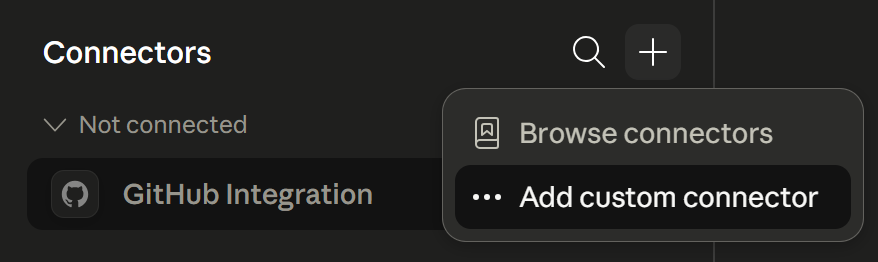
This article walks through the exact steps to connect the Adsroid MCP server to Claude.ai. The process takes less than two minutes and only needs to be done once. After setup, the connection is active in every Claude conversation automatically.
What you need before starting
An active Adsroid account
Your Adsroid API key, you can create one from the settings section
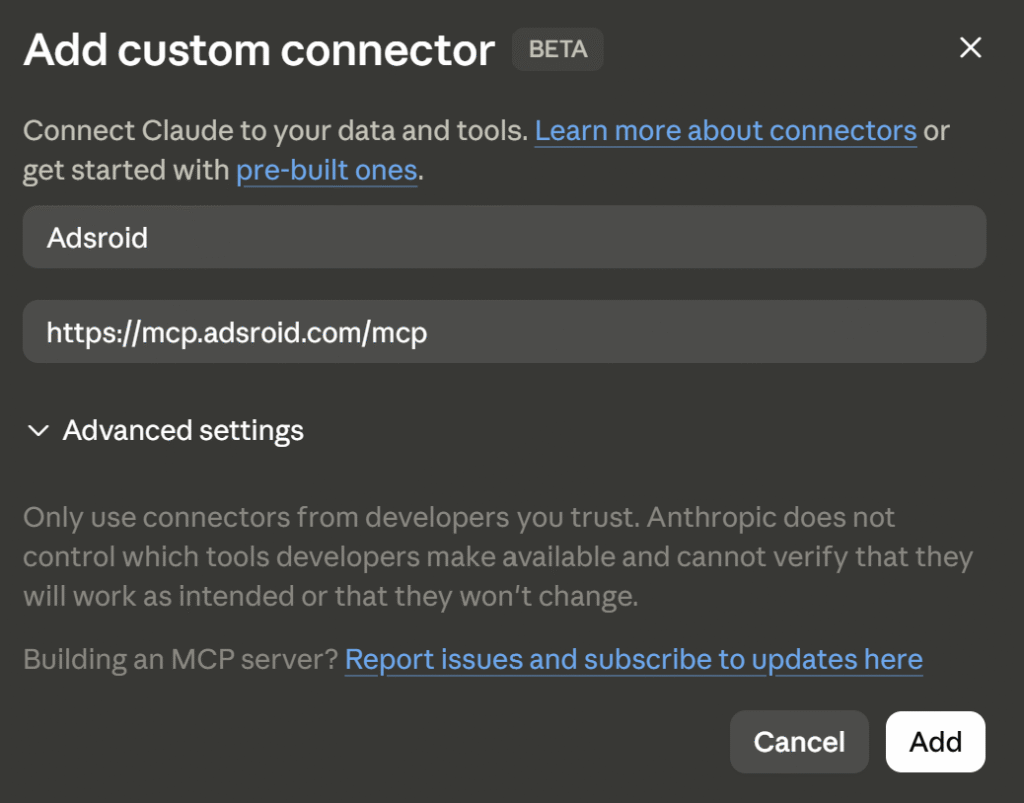
You will be prompted to enter a server URL. Enter the following:
Add custom connector — Claude.ai
Name
Adsroid
Remote MCP server URL
https://mcp.adsroid.com/mcp
ℹ
Leave the OAuth fields empty. Authentication is handled automatically via your Adsroid API key on first use.
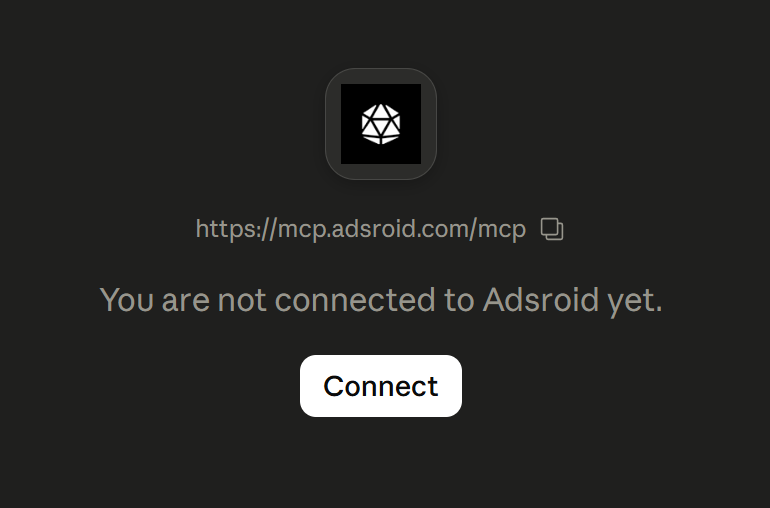
Click Connect to proceed.
Step 3 — Authenticate with your API key
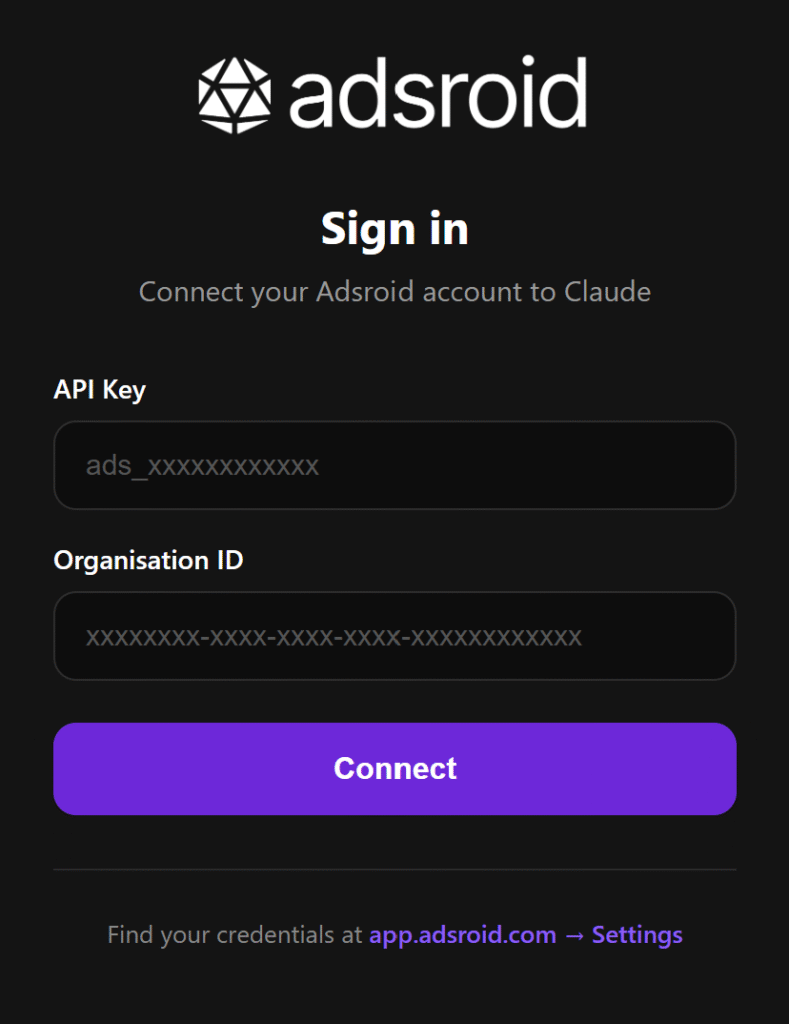
Claude will prompt you to authenticate with the MCP server. Enter your Adsroid API key in the field provided and confirm.
Your API key and your Organization ID is available in your Adsroid dashboard under Settings. Copy it exactly as shown, it is case-sensitive.
Step 4 — Confirm the connection
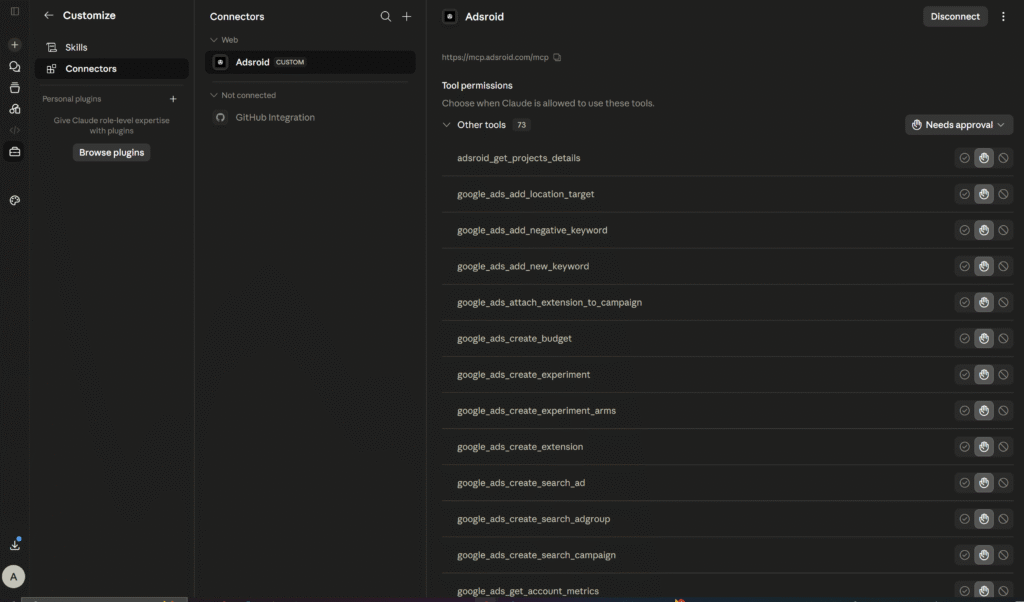
Once authenticated, Adsroid MCP will appear in your list of active integrations. The status indicator should show as connected.
You will also see the number of tools made available by the server, this corresponds to the full set of Adsroid MCP tools loaded for your workspace.
Step 5 — Start a conversation
Open a new conversation in Claude. The Adsroid MCP tools are now available in this session.
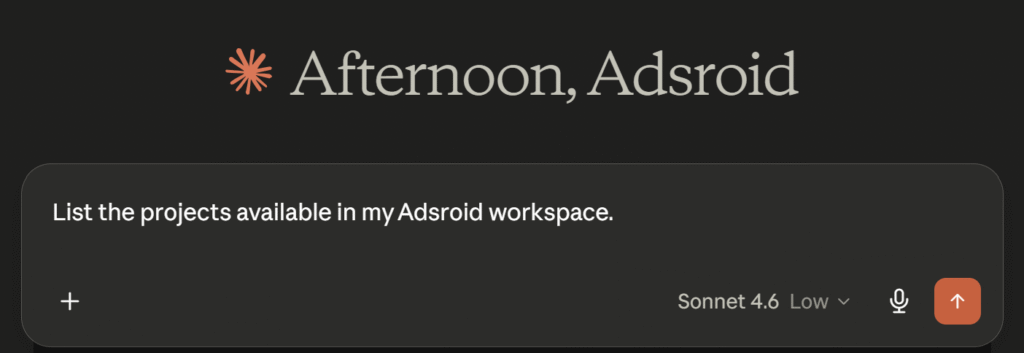
To verify the connection is working, ask Claude something simple like:
“List the projects available in my Adsroid workspace.”
Claude will call the appropriate tool and return your project list. If you see your projects, the setup is complete.
Troubleshooting
The connection fails at Step 3. Double-check your API key. Make sure you copied it in full with no extra spaces. If the issue persists, go to Settings → API Keys in your Adsroid dashboard and generate a new key.
Claude says the integration is connected but no tools are available. Disconnect and reconnect the integration. If the problem continues, check that your Adsroid account is active and that your API key has not been revoked.
Claude is connected but returns an error when calling a tool. This usually means the adsroid_project_id passed to the tool does not match any project in your workspace. Ask Claude to list your projects first, then use the correct project ID in subsequent calls.